Retrospectives
How to Create a Retrospective
Click "Create Board" in the main list. Choose from 100+ templates or create your own. When creating, configure:
- Column Names — add and edit columns
- Private Mode — hide others' cards until the stage is complete
- Show Author — display the card author's name
- Allow GIFs — enable GIF animations in cards
- Health Check — add a team health assessment stage
- Icebreaker — include an icebreaker stage before the retro and pick the game: Hangman, "Sprint in one GIF", "Draw and guess" or "Decoded"
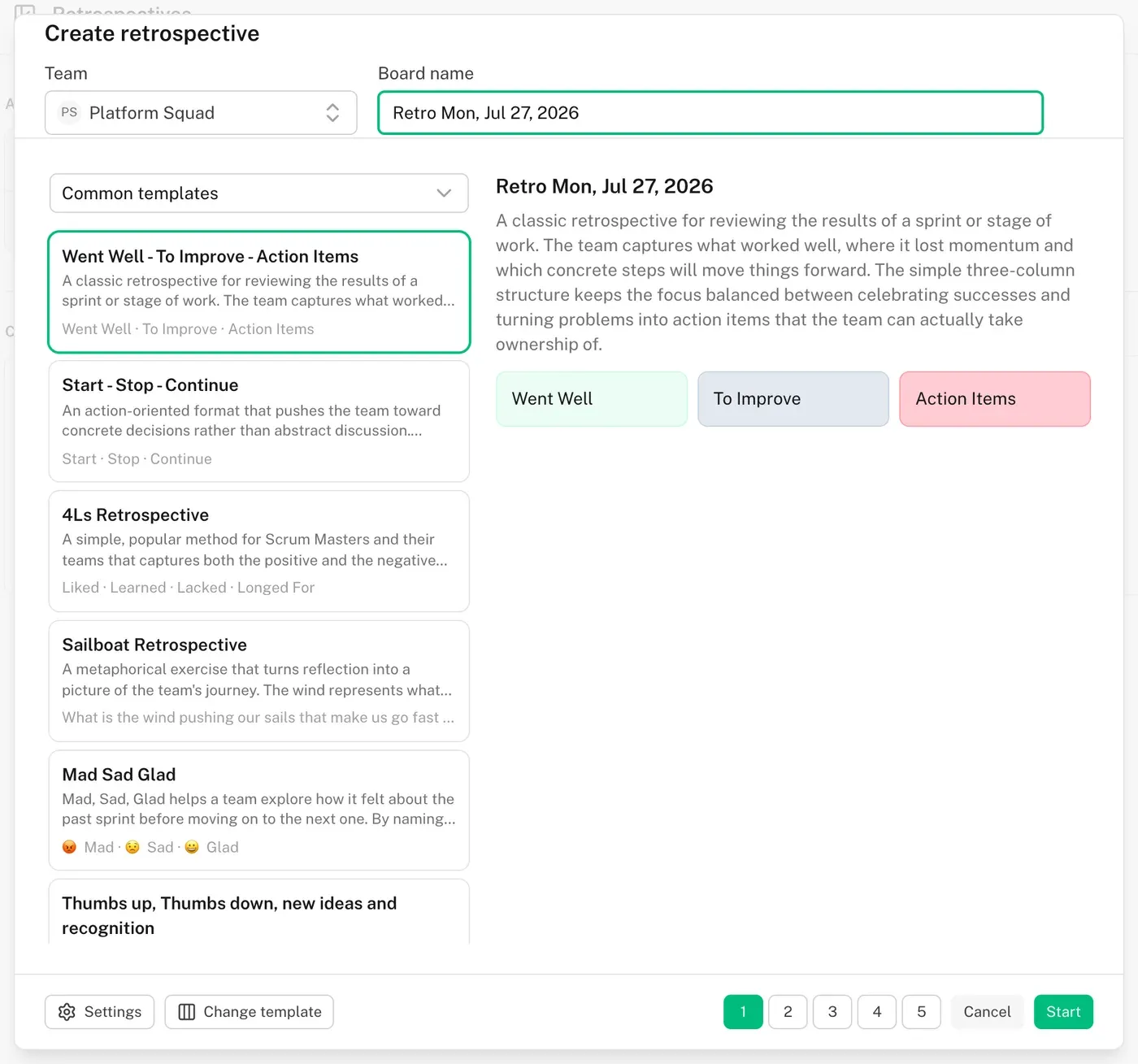
Popular formats to start with
If you are not sure which format fits, these are the ones teams reach for most often:
- Went Well — To Improve — Action Items — the classic sprint review in three columns.
- Start — Stop — Continue — pushes the team toward concrete decisions.
- Mad — Sad — Glad — surfaces how the sprint actually felt.
- 4Ls: Liked, Learned, Lacked, Longed For — balances facts and feelings.
- Sailboat — what pushes the team forward and what holds it back.
- Starfish — five degrees of change instead of a simple good/bad split.
- Lean Coffee — for a retro without a fixed agenda.
- ESVP — check the mood before the retro even starts.
The full catalog is on the templates page.
7 Retrospective Stages
QRetro guides you through 7 stages. Each stage can be skipped or you can return to a previous one.
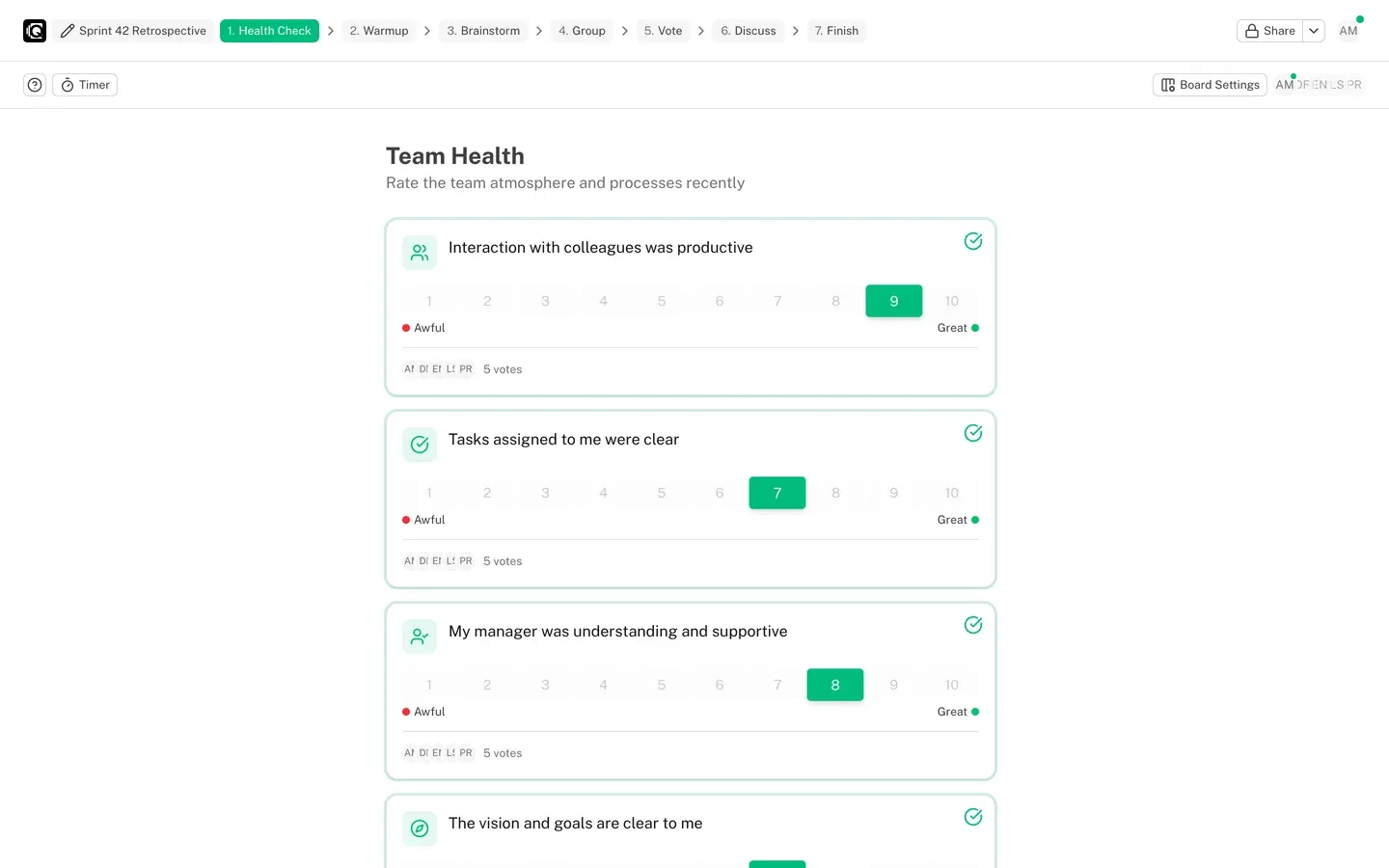
Stage 0: Health Check (optional)
Participants rate 6 aspects of team work on a scale of 1-10:
| Aspect | Description |
|---|---|
| 👥 Colleague Interaction | Communication and collaboration within the team |
| ✅ Task Clarity | Clarity and understanding of assigned tasks |
| 👨💼 Manager Support | Help and support from the manager |
| 🧭 Vision and Strategy | Understanding of goals and work direction |
| 🛡️ No Blockers | Minimal obstacles to task completion |
| ⚡ Motivation | Level of engagement and energy |
After voting, results are displayed as a radar chart in the results stage. Avatars of participants who have already voted are visible.
Stage 1: Icebreaker (optional)
An interactive icebreaker for the team before the main part of the retrospective. Pick one of four games when you create the board — or switch the game later in board settings, even while the icebreaker is already running. Everything happens in real time, so all participants see the same state.
The same four games can be played outside a retrospective, in a room of their own — see the games guide.
Hangman. The team guesses a word letter by letter, with six wrong letters allowed. Words come from the world of development, teamwork, and agility. Every letter opened is immediately visible to everyone, so the team solves it together.
Sprint in one GIF. Everyone answers the round question with an animation — for example, "Pick a GIF that sums up this sprint for you".
- The host starts the round, and everyone gets the same question
- Each participant picks a GIF from search or uploads their own image
- Picks stay hidden while the team is choosing — only the number of answers is visible
- The host reveals all the answers at once, or starts the board timer and they open when it runs out
- After the reveal you can start a new round with a different question
Draw and guess. One participant draws the word while everyone else watches the line appear and guesses in the chat. Two participants are enough to play.
- The host starts the round and hands the brush to someone — either the next person in line or a specific participant
- The word goes only to whoever is drawing; everyone else sees a mask of it (
_ _ _ _ _) - The one drawing gets six colours, three brush sizes, an eraser, a fill, undo and a full wipe
- If the team is stuck, the person drawing can open a letter — up to half of the word
- Wrong guesses appear in the chat as normal messages; a correct one is never shown, the chat says who got it and what the word was
- The first correct guess ends the turn — as does the board timer, or the host handing the brush on
- When the brush has been around everyone, the circle starts over: the game keeps going until the host moves the board on to the next stage
Decoded. One participant lays the word out in emoji while everyone else guesses in the chat. Two participants are enough to play.
- The host hands the word to someone — either the next person in line or a specific participant
- The clue is up to five emoji, and can be changed while the round is going; letters and numbers are not allowed in it
- Wrong guesses appear in the chat, a correct one ends the round: the chat says who got it and what the word was
- The board timer closes the round as well, and then the word goes to the next participant
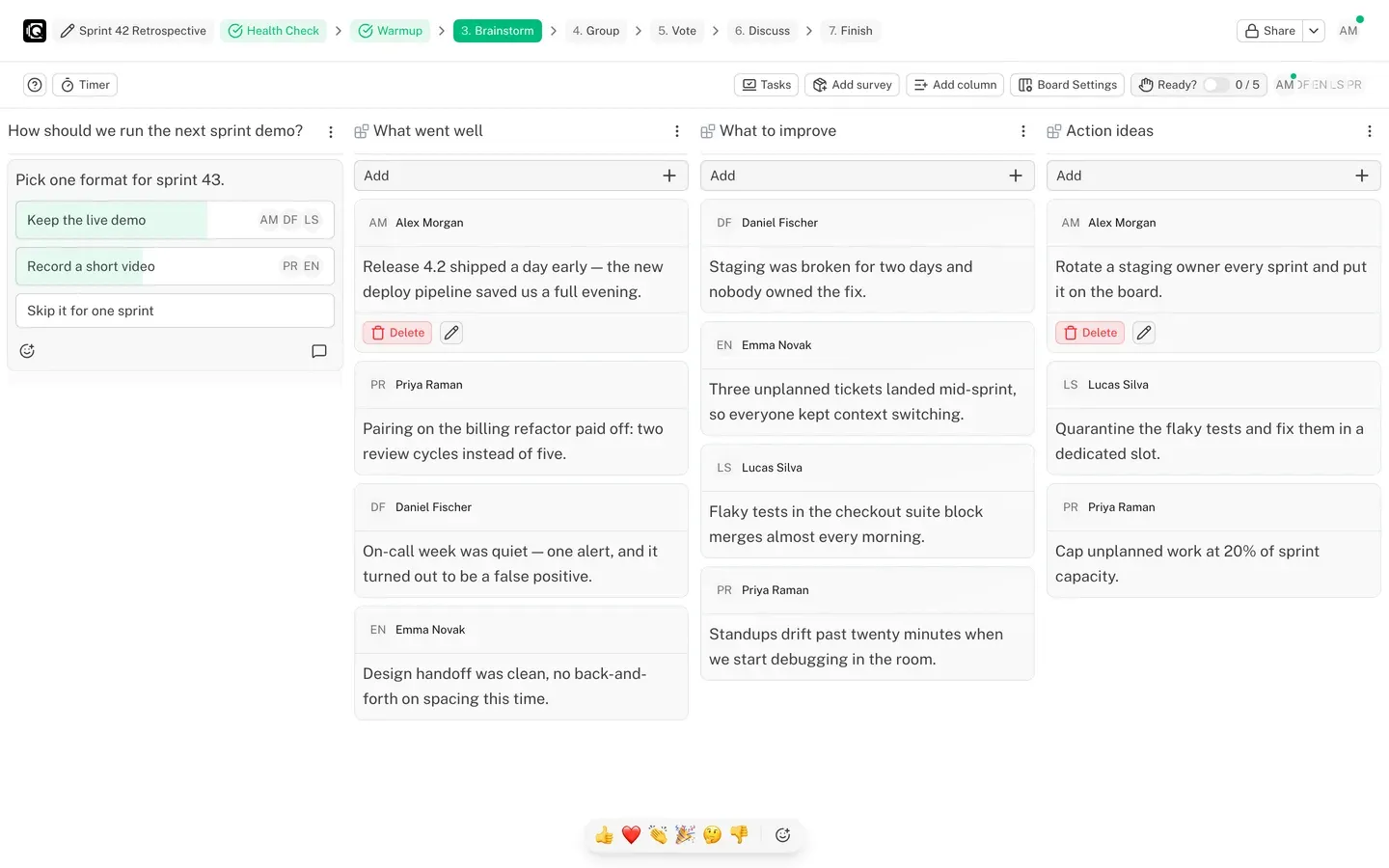
Stage 2: Adding Comments
The main stage. Participants add cards to columns. In private mode, others' cards are hidden. You can add GIFs and send emoji reactions (👍 ❤️ 👏 🎉 🤔 👎).
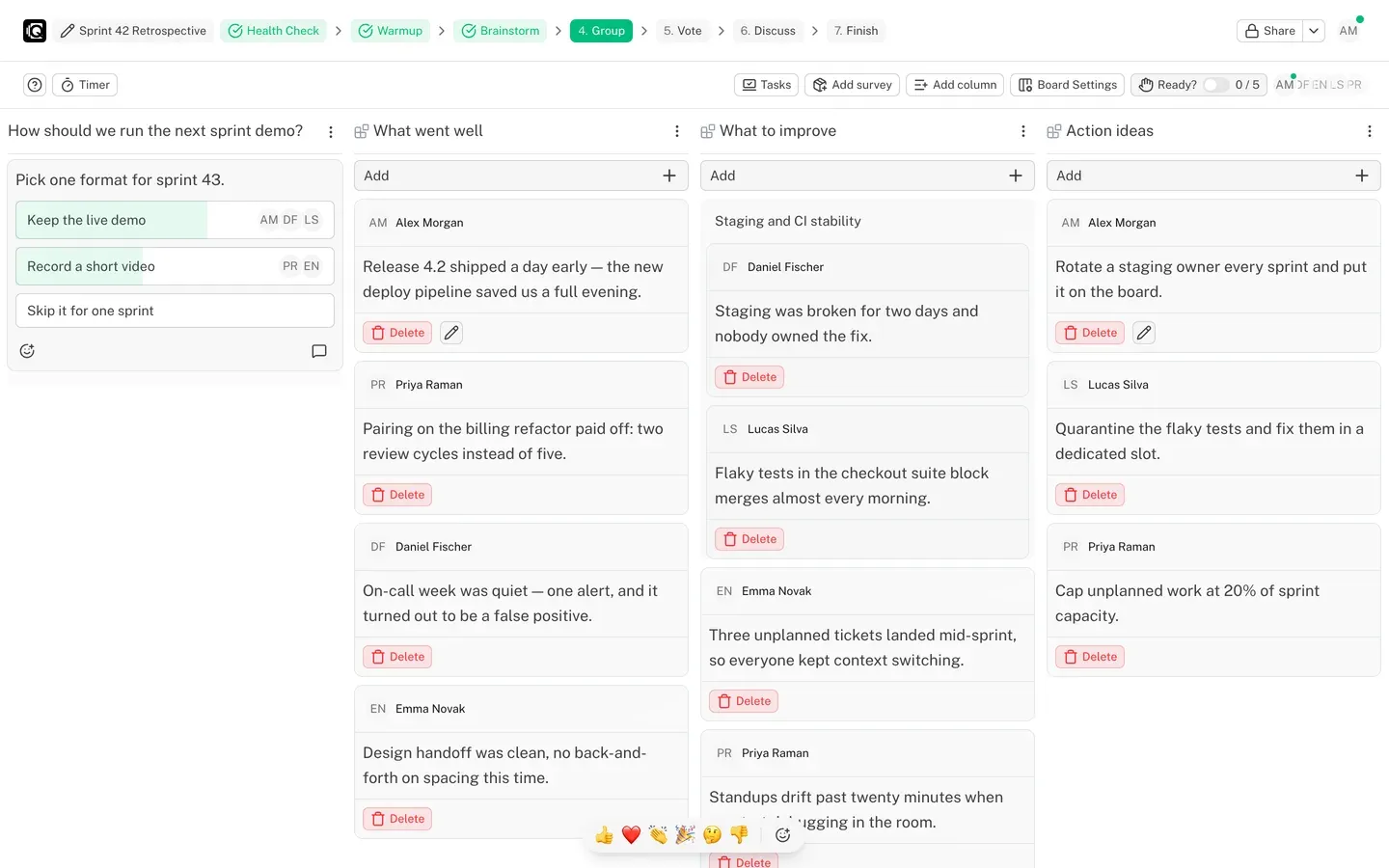
Stage 3: Grouping
Combine similar cards into groups by dragging. The system automatically suggests a name for the group.
Stage 4: Voting
Vote for important topics. Vote limit is calculated automatically: number of cards + 3 (maximum 10).
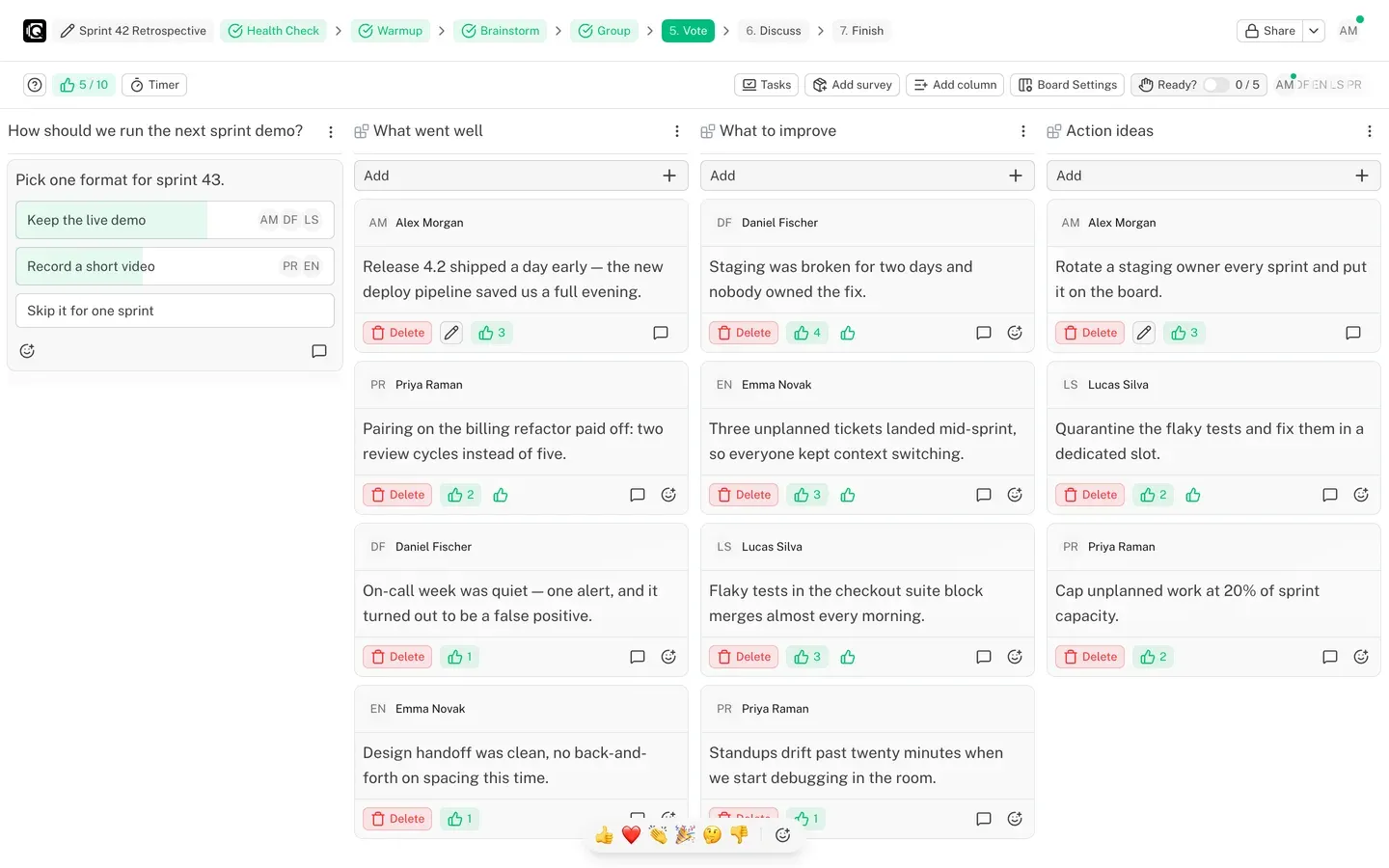
Stage 5: Discussion
Discuss voting results and add Action Items.
Stage 6: Results
The final stage with:
- Automatic summary of the retrospective
- List of Action Items
- Survey results
- Health Check chart (if enabled)
Results can be sent to Slack or Telegram.

Board Settings
| Setting | Description |
|---|---|
| Private Mode | Hides other participants' cards |
| Disable Voting | Disables voting capability |
| Hide Vote Count | Hides the number of votes |
| Vote Limit | Auto: cards + 3, maximum 10 |
| Allow GIFs | Enables GIF animations |
| Show Author | Displays the card author's name |
| Close for Editing | Blocks changes |
| Health Check | Adds team health survey |
| Icebreaker | Adds icebreaker stage: Hangman, "Sprint in one GIF", "Draw and guess" or "Decoded" |
Surveys
Click "Add" → "Add Survey". Specify the title, description, and up to 10 answer options. Each participant selects one option. Results are displayed after voting.
A survey ends when the board is closed or through the "Close Survey" menu.
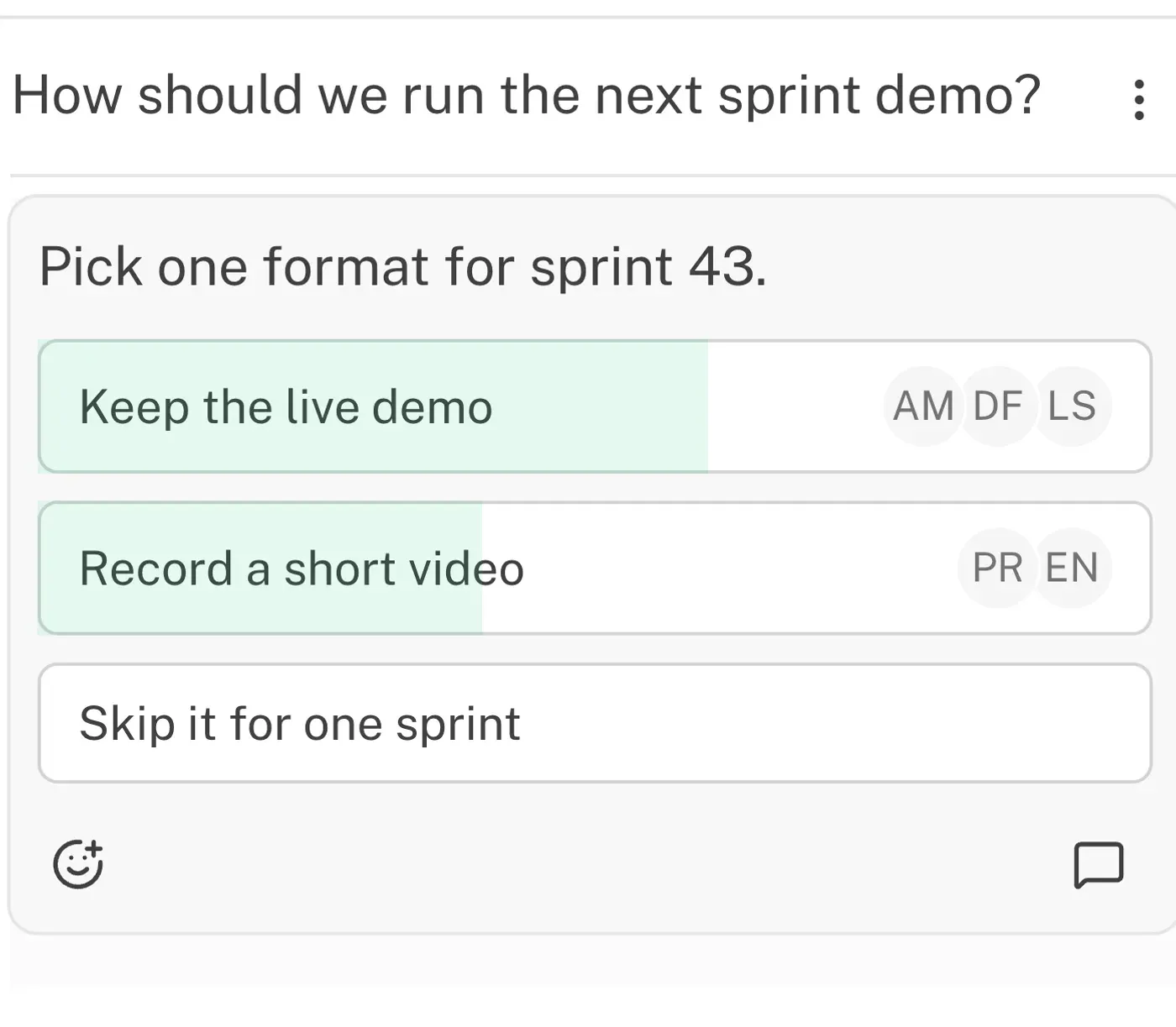
Action Items
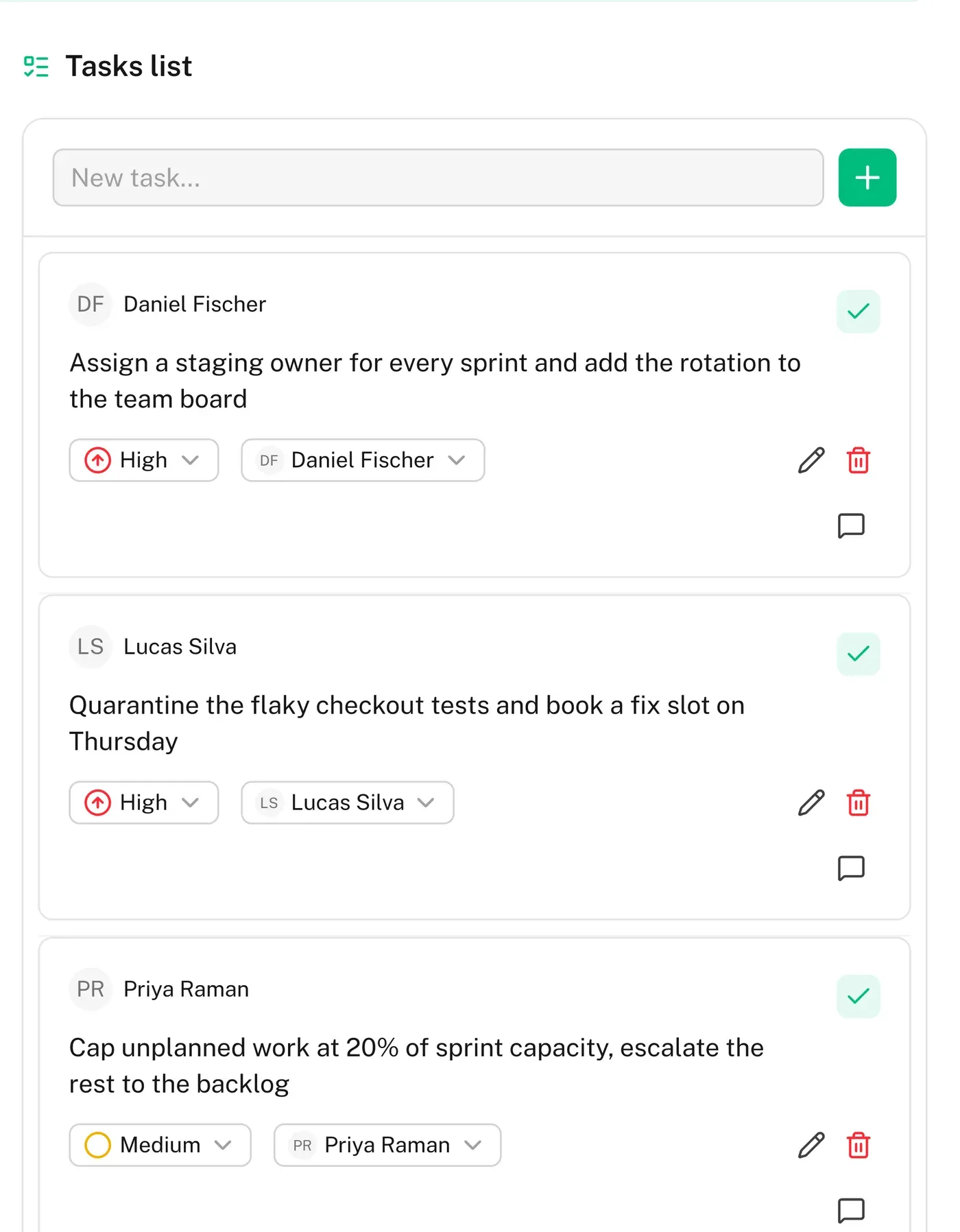
Action Items are specific tasks for process improvement. Add them during the discussion stage:
- Click "Tasks" in the menu
- Enter the task text
- The task will appear in the list
All team tasks are available in the "Tasks" section of the left menu.
Timer
Set a timer to limit stage time. The timer notifies all participants when it ends.
Emoji Reactions
During the retrospective, send emoji reactions that pop up on screen in real-time: 👍 ❤️ 👏 🎉 🤔 👎. An extended emoji selection is also available.
Column Customization
Available actions: rename, change color, clear cards, delete.
